 Arcnode
 Getting help
You need Arcnode Remote on the computer that needs help. It's a free download for Windows 10 and 11. You don't need an account.
Enter a code or open a link
- Ask your helper for a code. They create it in Arcnode Remote and read it to you or send it.
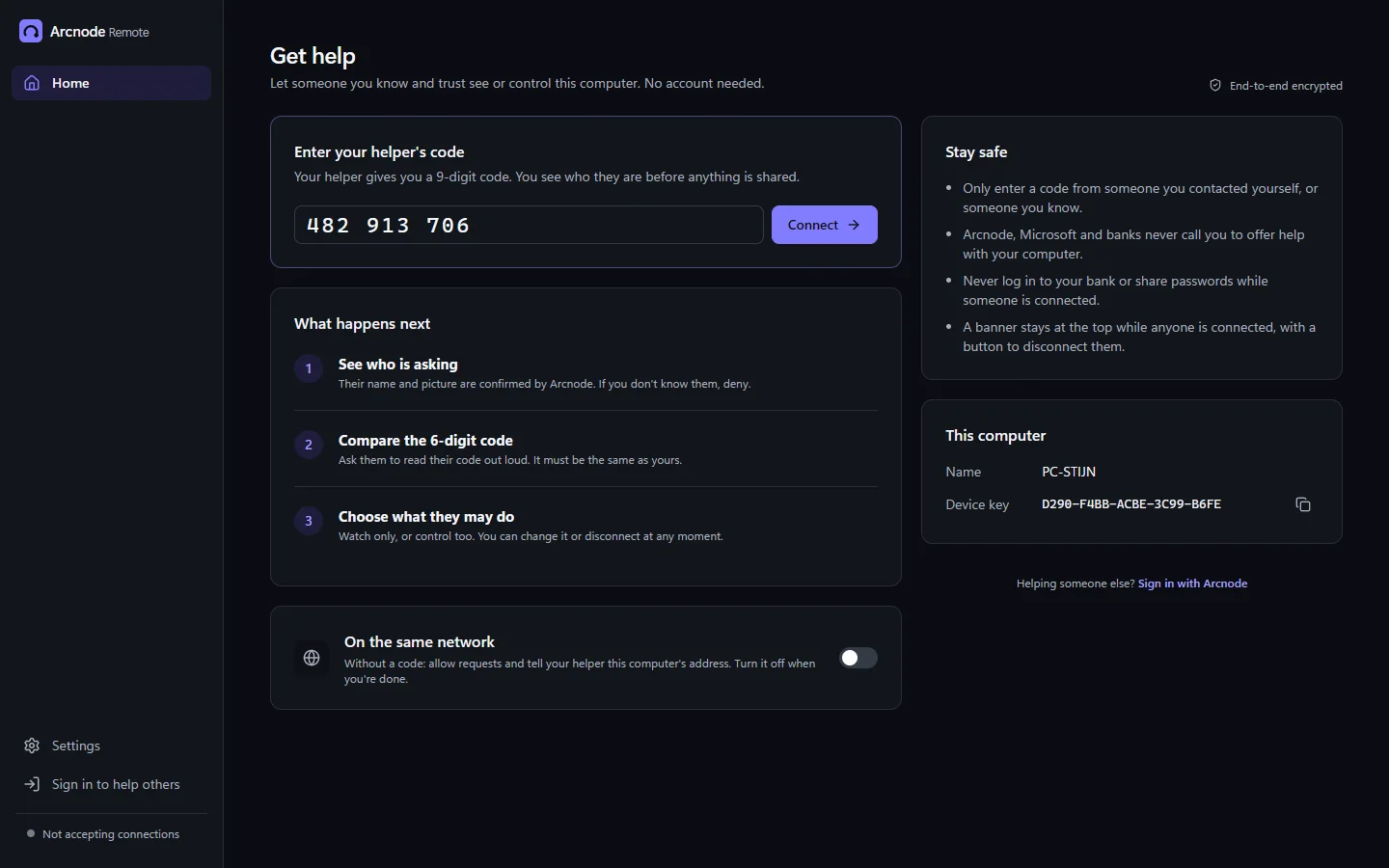
- Open Arcnode Remote and choose Get help.
- Type the 9 digits and select Connect.
Did your helper send a link like remote.arcnode.dev/join/123456789? Open it on the computer that needs help. The page shows who sent it, with a button that opens Arcnode Remote with the code filled in. You can also enter a code on this site.
A code works once and expires after 10 minutes. If it has expired, ask for a new one.
What the request shows
- Who is asking. Their name and picture, marked Verified Arcnode account when Arcnode confirms them. If that can't be confirmed, you see a warning instead.
- A 6-digit verification code. Ask your helper to read the code on their screen out loud. It must be exactly the same. If it isn't, decline.
- What they want to do, for example see your screen.
- Who started this. Say whether you asked them for help, or they contacted you. Be careful with anyone who contacted you out of the blue.
Allow viewing or control
You choose what your helper may do: view only, control (use your mouse and keyboard), and clipboard (copy and paste between the computers). Nothing is shared until you select Allow.
During the session your helper can ask for more, such as control or a support tool. One request can include several things. You tick what you allow and leave the rest.
While a helper controls your computer, the edges of your screen glow. You can turn the glow off. Your helper doesn't see it.
End a session
Select Disconnect in Arcnode Remote at any moment.
Get your keyboard and mouse back
If your helper blocked your keyboard and mouse, press Ctrl + Alt + Shift + S or Ctrl + Alt + Del to get them back.
Private input is the one exception: it pauses your keyboard and mouse for up to 3 minutes while your helper types a password, and you can't end it early. Ctrl + Alt + Del still works in an emergency.
Helping others
Sign in
Open Arcnode Remote and choose Sign in to help others. You sign in with your Arcnode account in your browser.
Helper access
Only accounts the Arcnode team has given helper access can help others. Without it, you can still get help, but you can't create codes. To ask for helper access, contact Arcnode.
Create a code or link
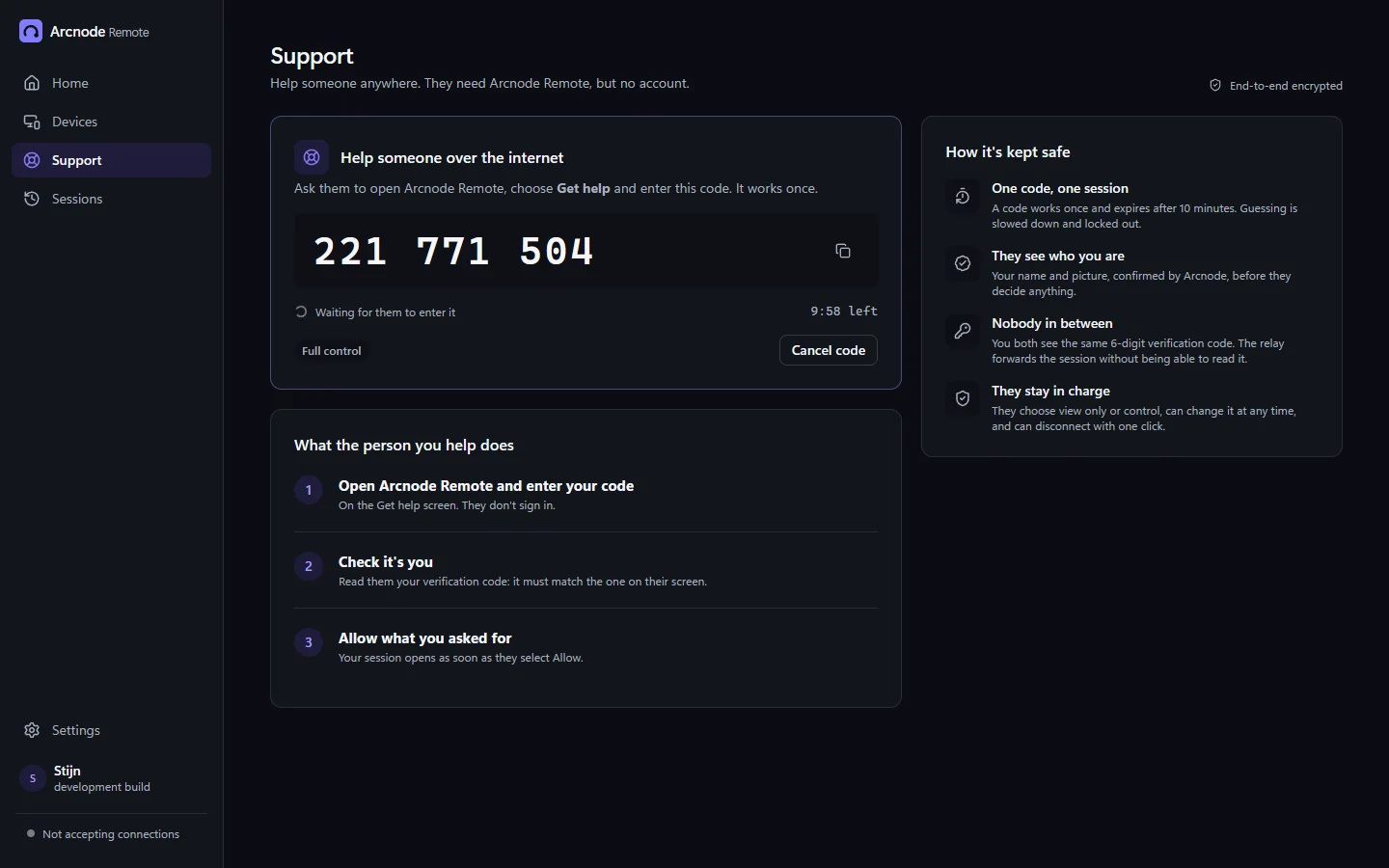
- Go to Support and create a code.
- Share the code or the support link: read the digits out loud, copy the ready-made message, or send it by email.
- When the other person enters it, they see your name and picture and decide what you may do.
The code works once and expires after 10 minutes. On the same network, you can also connect directly to the other computer's address once they turn on On the same network under Get help.
During a session
- Choose a screen, show all screens side by side, or pop each one out into its own window.
- Switch between Smooth (up to 60 fps), Balanced and Sharp, and go full screen.
- Chat and send files both ways. Every file waits for the receiver's yes.
- Ask for more access or a support tool. The other person ticks what they allow.
Support tools
Each tool needs the other person's yes, every time.
- Hide their screen. They see a privacy screen. You still see their desktop.
- Block their keyboard and mouse. Only your input works. They can take it back at any moment with Ctrl + Alt + Shift + S or Ctrl + Alt + Del.
- See their camera, for hardware you need to look at.
- Private input. Hides their screen and pauses their input for up to 3 minutes while you type a password. Only for helpers Arcnode has confirmed. They can't end it early, but Ctrl + Alt + Del still works.
Any-time access and the Computers page
If you look after someone's computer, you can ask for any-time access during a session. Once they allow it, you can connect later without anyone clicking Allow. See Any-time access.
Any-time access
Any-time access, also called unattended access, lets a helper you trust connect to your computer later, when you're not there. It's off until you turn it on.
How it's turned on
- During a session, a helper Arcnode has confirmed asks for any-time access.
- You see a clear dialog. To allow it, you tick I trust their name to use this computer when I'm not there.
- You can also choose Start with Windows, so Arcnode Remote is ready after a restart.
What changes
- Arcnode Remote stays in the tray and starts with Windows.
- Your trusted helper can connect without someone clicking Allow.
- When they connect, the Arcnode Remote window opens and shows who is connected.
- The helper's app pins your computer's device key, so it can tell if another computer ever pretends to be yours.
Turn it off
Turn it off any time from the Arcnode Remote icon in the tray, or in Settings.
Limits
- It works while you're signed in to Windows.
- The Windows sign-in screen and administrator (UAC) prompts are out of reach for now. Someone at the computer has to handle those.
- Only helpers Arcnode has confirmed can ask for it.
Safety
Verified names
Verified Arcnode account means Arcnode confirmed the helper's name and picture from their Arcnode account. It tells you who they are. It doesn't mean they work for Arcnode.
If a name can't be confirmed, Arcnode Remote warns you. Only continue if you know the person.
What a helper can do
- Only what you allowed: view, control, clipboard, and the tools you said yes to.
- Ask for more during the session. You can always say no.
What a helper can't do
- Connect without your OK, unless you turned on any-time access for them.
- Send you a file without your yes.
- Use a code twice, or after 10 minutes.
- Lock you out: Ctrl + Alt + Del always works.
Don't log in to your bank while someone is connected, and never read out passwords or codes from your bank.
Troubleshooting
The code doesn't work
- Check that you typed all 9 digits.
- A code works once and expires after 10 minutes. If it was used or has expired, ask for a new one.
- After too many wrong codes, wait half an hour before you try again.
"That computer isn't online"
Helpers see this when they connect to a computer from the Computers page and it can't be reached. Check that the computer is on and awake, that someone is signed in to Windows, that Arcnode Remote is running there, and that any-time access is still on. With Start with Windows, the app starts by itself.
A direct connection doesn't work
Direct connections on the same network use port 47821 by default. Check that both computers are on the same network, and that Windows Firewall, or any other firewall, allows Arcnode Remote on that port. Connecting with a code over the internet doesn't need any open ports.
The link doesn't open the app
Start Arcnode Remote yourself, choose Get help and type the code shown on the page.
Updates
Arcnode Remote updates itself with signed updates from Arcnode. If something doesn't work, make sure you have the latest version: download it again and run the installer.
Privacy
Arcnode doesn't record or store anything from your sessions: not your screen, keystrokes, clipboard or files. Sessions are encrypted end to end between the two computers. The relay that connects them only forwards encrypted bytes and can't see the session.
The relay logs event names only. It never logs addresses, codes, accounts or contents.
This site sets no cookies and loads nothing from other sites, except the helper's picture on a support link. Helpers sign in with an Arcnode account: the Arcnode privacy policy explains how Arcnode handles account data.
Uninstall
- Open Windows Settings.
- Go to Apps > Installed apps.
- Find Arcnode Remote and choose Uninstall.
Arcnode Remote is installed for your Windows user only, so you don't need administrator rights to remove it.